
Stop hitting plan limits
No plan limit window reaches 100% before its reset, so the agent never stops you mid-task.
Signs you need it
Section titled “Signs you need it”This playbook applies when one of these holds. The first three are the app’s own alerts.
- The Limits tab’s percent pill is amber or red, with a ring. The app shows it so when an open window is at its limit, is forecast to run out before its reset, or is at 90% or more; otherwise the pill is a quiet percent.
- Limits, the heading, names a window “is at its limit” or “runs out …”, and a card’s header reads at its limit or runs out.
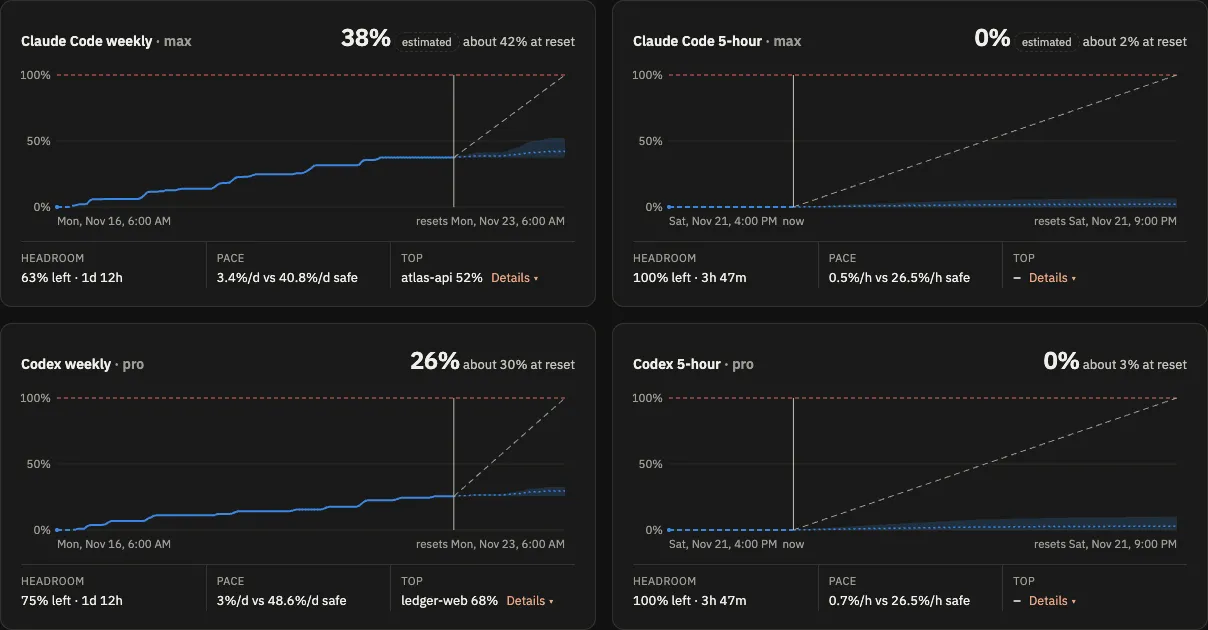
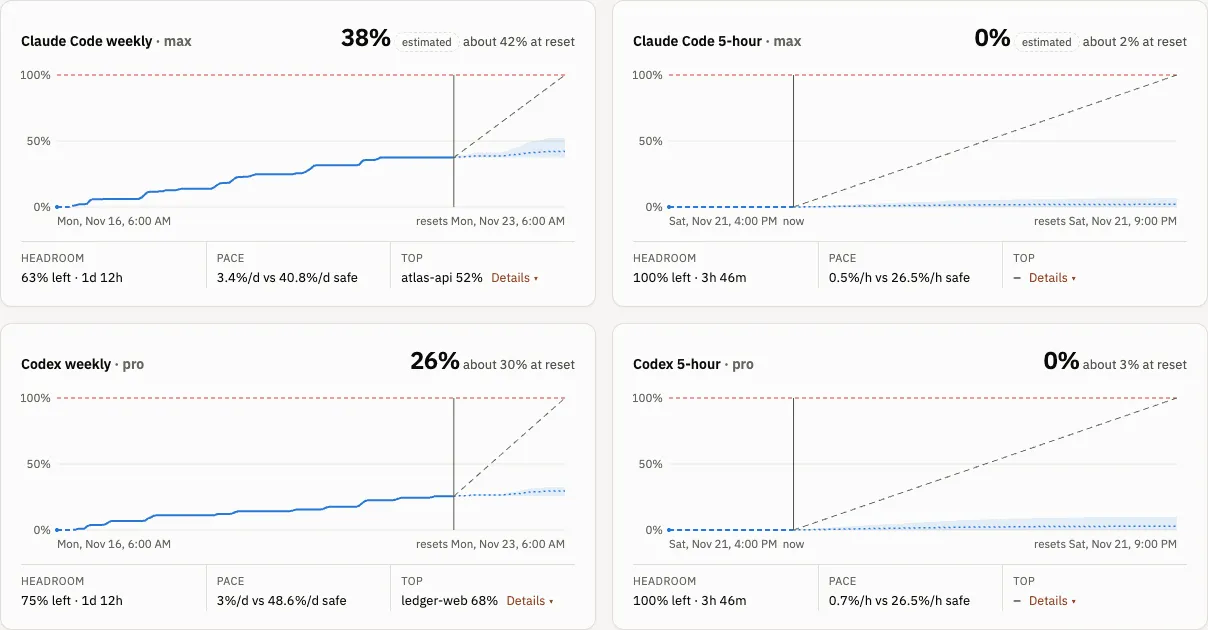
- Limits, a window card: its cone is amber, its footer’s Pace shows in the critical tone (faster than the safe pace), or its Details read “If the last 24 hours continue: reaches 100% at …” in the warning tone.
- Rule of thumb: Limits, Past windows at 30d, shows red bars (hit its limit) in two windows or more of the same limit.
The plan limit window is the 5-hour or weekly allowance of your plan, not the model’s context window; see Windows.
Grok has a Limits card on macOS and Linux when the Grok CLI is signed in with grok.com; with an API key or no grok.com login, Limits shows no Grok card. See Supported agents.
The opposite sign, a weekly limit that reads avg 50% unused or more in Past windows, means the plan is larger than your use: open Spend less for the same output.
On Linux
Section titled “On Linux”On Linux, the app cannot read Claude Code’s limits: the poll needs the macOS Keychain. The data line for Claude Code shows the polling failing chip, and Limits has no Claude Code window. This is expected. This playbook then works for Codex (read from transcripts) and Grok (polled with the grok.com login, which needs no Keychain). For Claude Code, read the limits in Claude Code itself, with /usage, and apply Act all the same. See Limits.
Diagnose
Section titled “Diagnose”Find out which of four causes you have. Limits shows open windows for the whole account, whatever the range.
- On Limits, read the heading. It names the window that stops you first. Then read the data line of its provider. If it reads “estimated”, or carries the chip old, polling failing or token expired, the figures rest on an old reading: use your agent’s own limits command to confirm (
/usagein Claude Code,/statusin Codex). - On that window’s card, read the footer’s Pace, such as “18%/d vs 7%/d safe”, then open Details and read the paces, such as “usual pace 6.8% a day; this window 12.5% a day over its last day; 9.1% a day would use it all” (an example). The usual pace is your average rate for this provider, weighted toward recent weeks. Compare the three rates.
- In the same Details, read What used this window. Note the top project and the top model, with their share and points.
- In a weekly card’s Details, read the surfaces line, such as “This week’s use by surface: Chats 60%, Claude Code 40%” (an example). The app counts only local agent use; the other surfaces show only in this line.
- In Past windows, set the range to 90d. Count the red bars of the limit, and read At 100% for in the table (Show data table). Note whether the hits are recent or spread over the 90 days.
| What you see | Cause | Fix |
|---|---|---|
| The window’s own rate is above the rate that would use it all, and (rule of thumb) twice the usual pace or more. Past windows shows few hits. | A burst of heavy work. | Pace your work to the reset |
| What used this window has one project or one model with most of the share. | One project’s sessions are expensive. | Cut the cost of the project that leads |
| The top project is a job that runs without you, such as a scheduled review or a CI agent. | Automated sessions use your plan. | Move automated runs after the reset |
| The surfaces line gives most of the week to another surface, such as Chats. | Use outside the agents. | Send work to the provider with headroom |
| Past windows at 90d shows red bars in most windows, and still does after the fixes above. | The plan is too small for your use. | Move to a larger plan |
Pace your work to the reset
Section titled “Pace your work to the reset”The footer’s Pace gives the safe pace, the rate that would use the window all: “9.1%/d safe” (an example). That rate is your daily budget until the reset. On the chart it is the thin, long-dashed straight line from now to 100% at the reset.
- Habit: when a plan limit, in a session’s status strip on Live, takes the warning color and reads “near” (above 80%, earlier than the Limits tab’s pill, which turns amber at 90%), finish the current step and stop heavy work, such as large refactors or wide searches, until the reset. Select or hover the ? toggletip beside the limit for its reset time, or read it on the Limits tab.
- Habit: each morning, read the window card’s Pace. When it shows in the critical tone (the verdict in Details reads ahead of pace), start that day’s heavy work with the other provider (see Send work to the provider with headroom), or with a cheaper model.
Cut the cost of the project that leads
Section titled “Cut the cost of the project that leads”The app counts points in estimated dollars, so a cheaper request uses fewer points in its estimate.
- If a model leads What used this window, move routine work to a cheaper model: Use a cheaper model for routine work.
- If a project leads, select it in What used this window. Cost opens on that project, at the smallest range that covers the window. If its sessions start large or compact often, follow Keep context lean.
Move automated runs after the reset
Section titled “Move automated runs after the reset”Automated sessions count in the window like yours, and What used this window counts them whatever the filters say.
- Find the job’s schedule: a cron entry, a CI workflow or a scheduled agent task.
- For a weekly limit, move it to run just after the reset that the card shows, so its use falls in a new window. For a 5-hour limit, move it to hours you do not work, such as the night.
- If it still fills the window, run it less often.
To keep such sessions apart in the other pages, follow Separate automated sessions from yours.
Send work to the provider with headroom
Section titled “Send work to the provider with headroom”When the heading shows a suggestion, such as “Send work to Codex: about 70% of its weekly limit would go unused” (an example), the other provider has room at the current pace.
Habit: when a window card reads ahead of pace, start the next new task in the agent that the suggestion names. Keep a short AGENTS.md next to your CLAUDE.md so that Codex reads the same project rules; Compare Claude Code, Codex and Grok shows how to compare the agents on your work.
If the surfaces line shows that chats use most of the week, the same budget covers them: count them in the daily budget of Pace your work to the reset.
Move to a larger plan
Section titled “Move to a larger plan”If Past windows at 90d shows red bars in most windows after the other fixes, the plan is too small. Change the plan in your account at Anthropic or OpenAI. The plan gauge on Cost then shows the new plan’s price.
Verify
Section titled “Verify”The same day, after a change of pace: the window card’s Pace is out of the critical tone, its Details verdict reads behind pace: about N% would go unused, and the line “If the last 24 hours continue” is out of the warning tone. The heading starts “No limit runs out at the current pace.”
Then wait: 14 days for a weekly limit, two full weeks of windows; for a 5-hour limit, 2 days on which you work with the agent, which span several of its windows. Read the strip by date, not by count: at 30d or 90d it still shows the red bars from before the day you acted. Read:
| Figure | Where | Expected |
|---|---|---|
| Red bars (hit its limit) | Limits, Past windows, at 30d | No red bar after the day you acted. The strip lists the windows oldest left, so the before and the after sit side by side. |
| At 100% for | Limits, Past windows, the table | Empty, or shorter, for the windows after the day you acted. |
| The percent pill | The Limits tab | A quiet percent, or an amber pill only (90% or more) late in a window. |
| avg N% unused | Limits, Past windows, at 30d | Rule of thumb: above 0%, but under 50%. 0% means every window ran out; 50% or more means the plan is larger than your use. |
If a figure did not move:
- An estimated window counts only local agent use. Use in claude.ai or Codex cloud shows only at the next measured reading, so a window can jump. Read the surfaces line.
- If the hits moved from the 5-hour window to the weekly one, you paced the day but not the week: use the weekly card’s daily rate.
- If What used this window has no top project you can change, go to Move to a larger plan.
Related
Section titled “Related”- Limits: every panel, line and drawer used here.
- Live: the plan limits in a running session’s status strip.
- Supported agents: which agents report plan limits.
- Context windows and plan limit windows: what a plan limit window is and how the app reads it.
- Metric glossary: the definition of each figure.
- Spend less for the same output: a cheaper model mix, and the plan fit when it is too large.
- Compare Claude Code, Codex and Grok: send work to the provider with headroom.
- Weekly 15-minute review: where Limits sits in a routine.