
Context menu
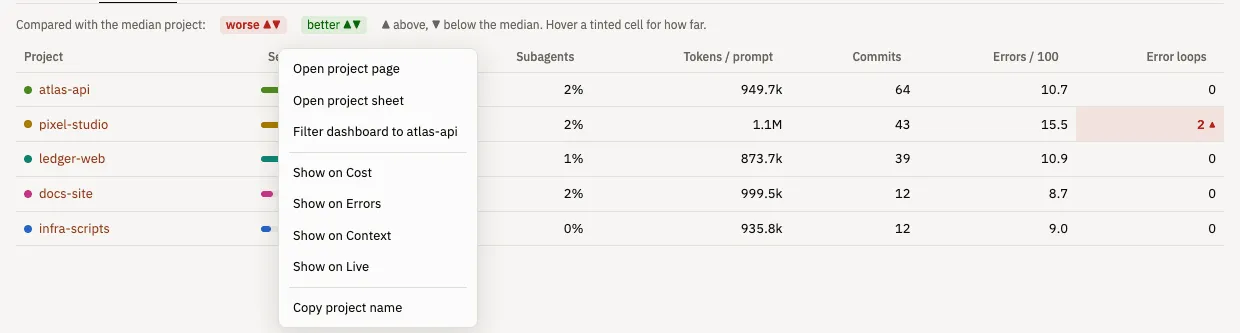
A right-click on a subject opens a menu of that subject’s actions at the pointer, in place of the browser’s menu. A right-click does not run the subject’s click action: it does not open a sheet.
Every action in a menu is also reachable without it, through a visible control, a sheet or the command palette.
Where it opens
Section titled “Where it opens”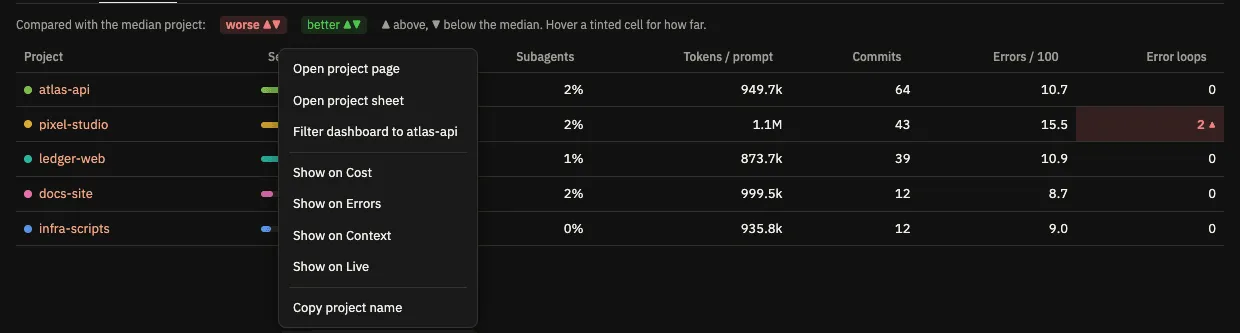
The menu opens on every row, card and name that stands for a subject:
- the rows of the dashboard tables and drawers;
- the rows of the project, session and tool sheets;
- the sessions of the Live rail and wall;
- the error type rows of Errors, and the rows of its Applied fixes table for a type with errors in the view;
- the projects of Limits, in What used this window and Commits a point, by project (not the folded “smaller projects” row);
- the session links of Errors’ examples and of the session cards of Activity’s Judgments view;
- the tool name of an Errors example;
- the sessions of Activity’s Error loops and Failed test runs, and of Context’s quadrant and window pressure lists;
- Context’s small window grids, one per project (not the “(no project)” grid);
- project names shown with their dot.
A project name inside another subject’s row or card opens that subject’s menu. A session row’s project name opens the session’s menu, not the project’s. An “Other” or long-tail row that stands for no single subject opens no menu.
How to open it
Section titled “How to open it”| Input | Result |
|---|---|
| Right-click | Opens the menu of the subject under the pointer. |
| Shift+F10 or the context-menu key | Opens the menu of the focused subject, anchored to it. |
| Long press on a touch screen | Opens the menu. It does not run the subject’s tap action. |
The browser’s own menu shows for a right-click outside a subject, for a right-click while text is selected, and for a right-click with Shift held.
The menu is a menu of menuitems, named after its subject (for example “jobdesk actions”). Move with Up and Down, pick with Enter. Escape closes the menu without closing a sheet or the palette, and focus returns to the subject. Picking any item closes the menu.
Actions by subject
Section titled “Actions by subject”Project
Section titled “Project”| Item | Action |
|---|---|
| Open project page | Opens the Project page, with the current range, source and automated filters. Left out on that project’s own page. |
| Open project sheet | Opens the project’s sheet over the current page, on every page. |
| Filter dashboard to project | Sets the project filter. When the page already shows only that project, the item reads “Show all projects” and clears the filter. |
| Show on Cost, Show on Errors, Show on Context, Show on Live | Opens that page filtered to the project, with the range, source and automated filters kept. |
| Copy project name | Copies the name. |
Session
Section titled “Session”| Item | Action |
|---|---|
| Open session | Opens the session sheet over the current page, as the palette does. On Live, the stream keeps its session and its live connection. |
| Open project page | Opens the session’s Project page. Left out when the session has no project or the page is that project’s page. |
| Copy resume command | Copies the command that resumes the session. |
| Copy session ID | Copies the id. |
| Copy working directory | Copies the session’s directory. Left out when the store has none. |
The resume command is claude --resume <id> for a Claude Code session, codex resume <id> for a Codex session and grok --resume <id> for a Grok session. When the store has the session’s working directory, the command starts with cd '<directory>' && , with the directory quoted for a POSIX shell.
An item that needs details the row does not carry (the source, project or working directory) shows as unavailable with the reason “Loading…”, and becomes available when the details arrive, with the menu still open. When the details cannot be loaded, those items stay unavailable with “Not available”. Open session and Copy session ID still work.
The session sheet also shows the resume command and the working directory, each with a Copy button.
Tool, MCP server or skill
Section titled “Tool, MCP server or skill”| Item | Action |
|---|---|
| Open inspector | Opens the same sheet the palette opens for that subject. |
| Copy name | Copies the name. |
Error type
Section titled “Error type”| Item | Action |
|---|---|
| Open on Errors | Opens Errors on that type, with the current filters. |
| Mute this type | On Errors only. Mutes the type, as the type detail’s Mute button does, with the same “Saving…” feedback. For a muted type the item reads “Unmute”. Left out for infra and user_denied. |
| Copy name | Copies the name. |
Navigation and copy feedback
Section titled “Navigation and copy feedback”A menu item that changes the page, the filters or the open sheet writes the URL once and adds one browser history entry. Browser Back returns to the view before the item was picked.
A copy item puts its text on the clipboard and says “Copied to clipboard.” or “Could not copy to clipboard.”, as a status a screen reader says once.