
Command palette
The command palette is one input that narrows the view, opens a page or a sheet, and runs a command. It writes the whole result to the URL in one step and adds one browser history entry.
Open it
Section titled “Open it”| Action | Result |
|---|---|
| Cmd+K on macOS, Ctrl+K on every other system, Linux included | Opens the palette on every page, also while focus is in a page control. The browser’s own shortcut does not run. |
| The Search button in the navigation | Opens the palette. It shows ⌘K on macOS and Ctrl K elsewhere, and the project’s color dot and name while a project filter is set. |
The palette opens with its input focused. When a sheet is open, it opens above the sheet.
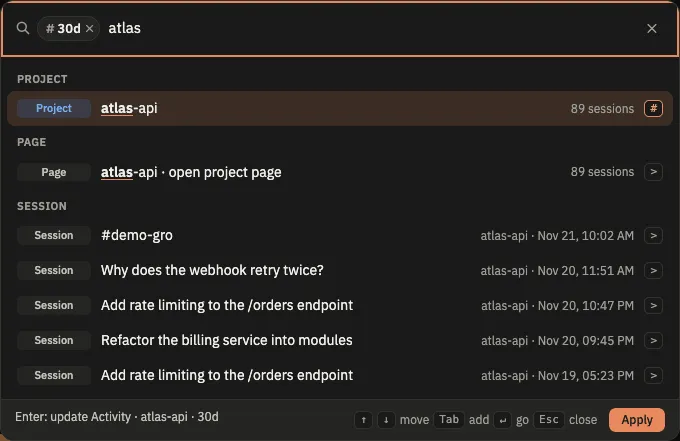
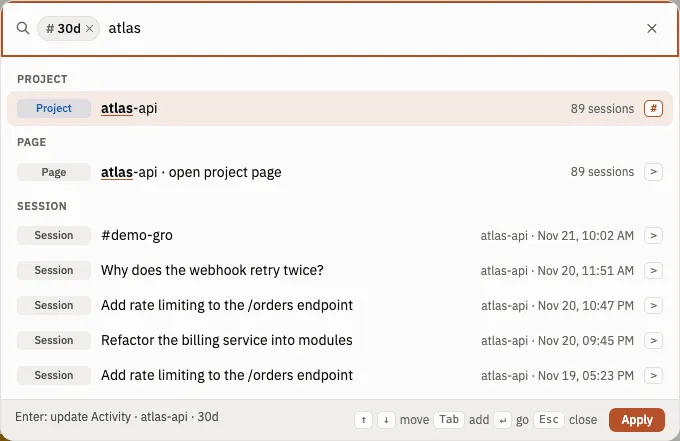
A term starts with # or >, at the start of the text or after a space. Text with no sigil matches every kind below. Each suggestion shows its kind as a badge and the sigil it becomes when you pick it.
# terms: filters
Section titled “# terms: filters”A # term sets a filter. Each one writes the same URL state as the page’s own control (see Filters).
| Term | Sets |
|---|---|
#<project> |
The project. |
#claude, #codex, #grok |
The source: Claude Code, Codex or Grok. |
#7d, #14d, #30d, #90d, #all |
The time range. |
#automated |
Include automated sessions. The URL records it on every page. It takes effect on the pages that have the control; Errors always shows automated sessions, and Limits has no control. |
A # term that matches a tool, an MCP server or a skill is not a filter. The palette offers that subject’s inspector instead, as a row such as “Bash · open inspector (>)”.
> terms: destinations and commands
Section titled “> terms: destinations and commands”| Term | Opens or runs |
|---|---|
>live, >limits, >activity, >cost, >context, >errors |
That page. Filters you do not change in the palette carry over. |
>judgments |
Activity’s Judgments view. >insights, its name when it was a page, finds the same row. >activity from the Judgments view opens Overview. With Codex or Grok as the only source, the footer says that Overview opens: that agent has no judgments. |
>project |
The Project page of the project the chips or the current view name. With no project, the palette does not offer the bare Project page. |
>jobdesk (a project name) |
The project’s page, in the Page group: the row “jobdesk · open project page” adds the project filter and the Project page together. The palette lists up to three such rows, for the best matches. |
| A tool, MCP server or skill name | That subject’s inspector sheet. |
| A session’s id, project or branch | That session’s sheet. |
| An error category | The category on Errors. |
>refresh |
The same ingest and data refresh as the navigation’s Refresh button. |
>copy link |
Applies the view the other chips describe, then copies that view’s URL. A status says “Link copied”, or that the link could not be copied. |
>docs, >help, >documentation |
Docs: this page: the documentation of the page the commit shows, in a new tab. Activity’s Judgments view opens Judgments; a page with no docs page of its own opens the docs home. |
>docs cost, or a docs page’s title |
Docs: <title>, one command per page of this site, such as Docs: How cost is estimated. It opens that page in a new tab. |
The docs commands are commands, like >refresh and >copy link: they take the command slot, and the other chips still apply to the view. A title alone, such as >cost, matches only at the start of the title or of one of its words, and ranks the page above its docs command: >cost opens Cost, and Docs: Cost comes after it. The footer names the docs page, for example “Enter: open the Cost docs in a new tab”. The palette sends nothing to this site until you commit a docs command.
Examples
Section titled “Examples”| Input | Result |
|---|---|
>errors #myproject #7d |
Errors, filtered to myproject and the last 7 days. |
#myproject #codex #7d >cost |
Cost, filtered to myproject, Codex and the last 7 days. |
#myproject >bash |
The Bash inspector over the current page, scoped to myproject. |
>errors >bash |
Errors with the Bash inspector open over it. |
#myproject >errors >copy link |
Errors filtered to myproject, with its URL on the clipboard. |
>project #myproject |
/project?project=myproject, with the current range. |
>errors >docs |
Errors, with the Errors docs in a new tab. |
A picked suggestion becomes a chip. Filter chips sit left of the input; the destination (page, inspector or command) sits right. Opening the palette shows a chip for each filter the current URL sets: project, source, range and the automated toggle. Removing a pre-filled chip and committing removes that filter. Committing with no change closes the palette and leaves the URL and history as they were.
Suggestions follow the filters you chose in the palette: tools, MCP servers and skills list only those with calls in the chosen view, with their call count and failure rate. Projects, sources and error categories show their count in that view.
Resolution rules
Section titled “Resolution rules”| Rule | Behavior |
|---|---|
| Order | The meaning of a commit does not depend on the order of its terms, except where a rule below names the later term as the winner. |
| Two pages | The later page wins. The earlier chip shows that it was replaced. |
| Two values of project, source or range | The later value replaces the earlier chip. |
| Two sheets | A commit opens at most one sheet. The later inspector replaces the earlier chip. |
| Error category | A category lives on Errors, so a category chip takes the commit to Errors. A page chosen after it wins, and the category chip shows that it was dropped. |
| Sheet with no page | The sheet opens over the current page. Every page shows the tool, MCP server, skill and session sheets, Limits included. On Live a session sheet keeps the session the stream follows, even when the same command changes the project. |
| History | One commit writes the URL once. Browser Back returns to the view before the commit. |
The footer states what Enter does with the current chips: the action, the destination and the filters that apply, for example “Enter: open Bash inspector · myproject · Claude Code · 30d”. It also names a page that a rule chose.
| Key | Action |
|---|---|
| Up, Down | Move the highlight through the suggestions. Home and End jump to the first and last. |
| Tab | Add the highlighted suggestion as a chip and keep the palette open. |
| Enter | Add the highlighted suggestion, if any, and commit. |
| Esc | Close the palette without changing the view. Focus returns to where it was. |
| Backspace in an empty input | Remove the last chip. |
While an input method (IME) composes text, Enter, Tab and the arrow keys belong to the input method. Once the composition ends, they act as above.
The palette is a combobox that controls a listbox, with the highlighted option as the active descendant. Chips are named buttons that say what removing them does. Changes to chips and the footer are announced. While the palette is open, focus and the screen reader stay inside it.
See also Context menu and Keyboard and screen reader.